

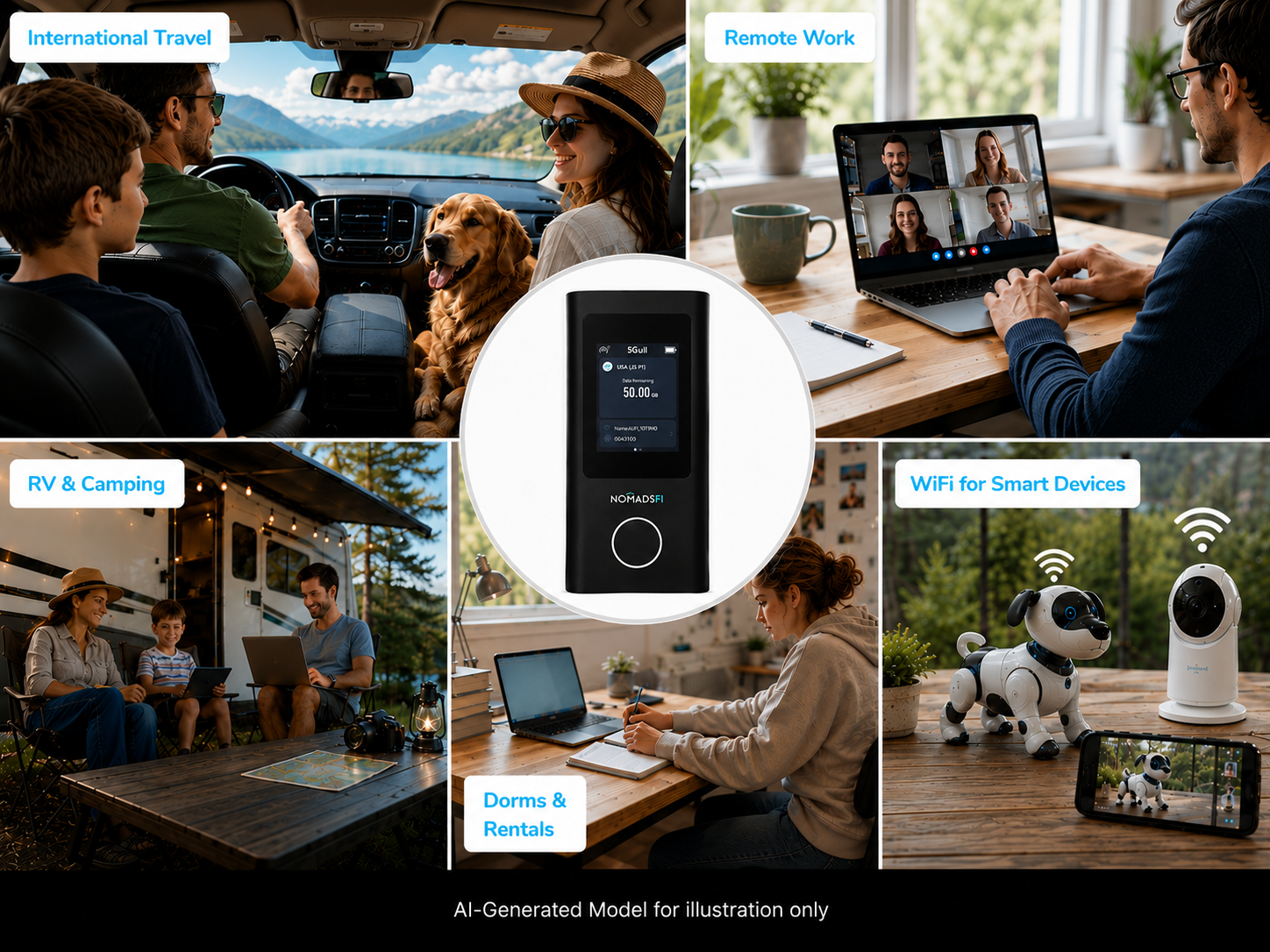
Portable WiFi for RV Travel and Remote Work: A Practical Connection Checklist
Working from an RV, campsite, hotel, event booth, or temporary office creates a different internet challenge from working at home. The connection must move with you, and the local network can change from one stop to the next.
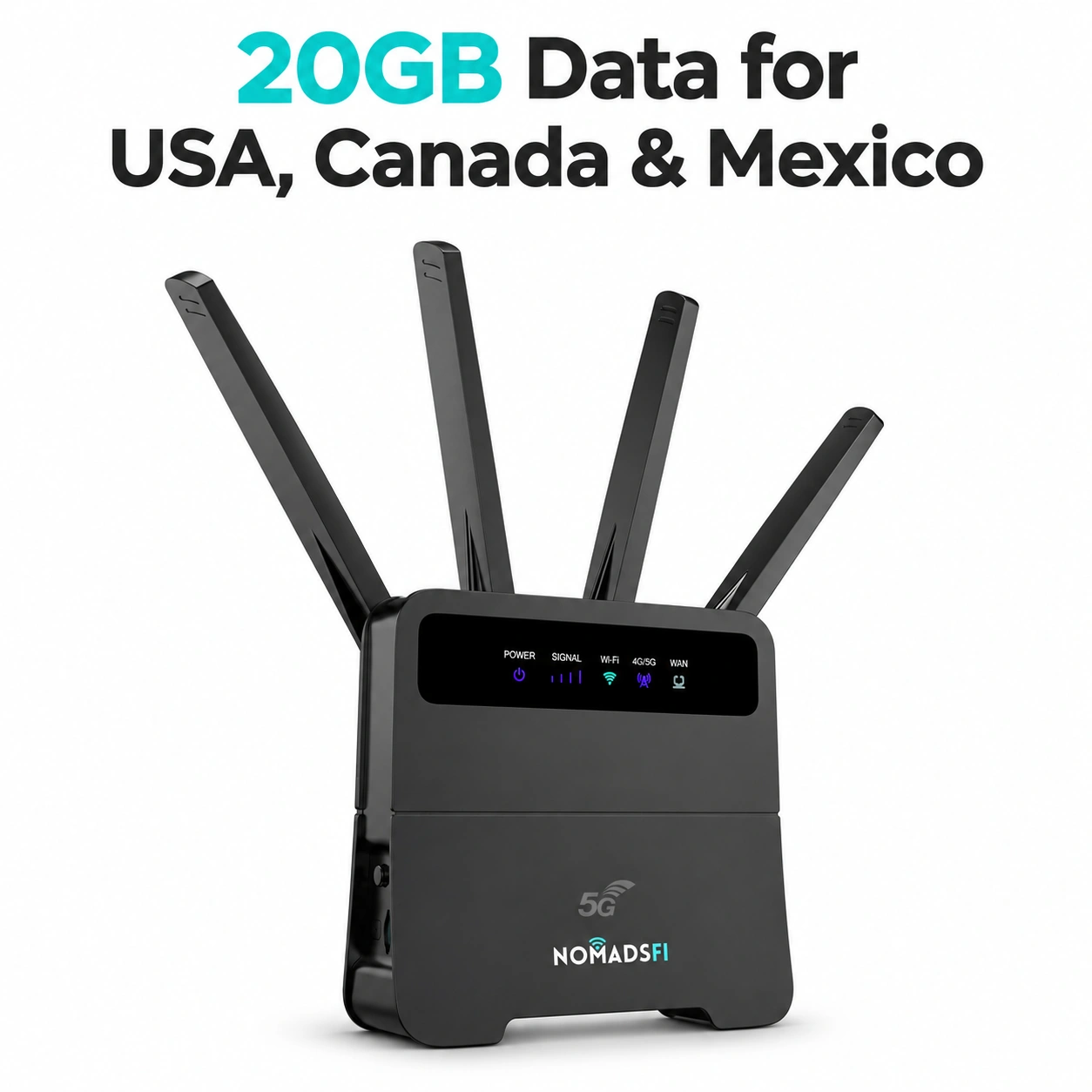
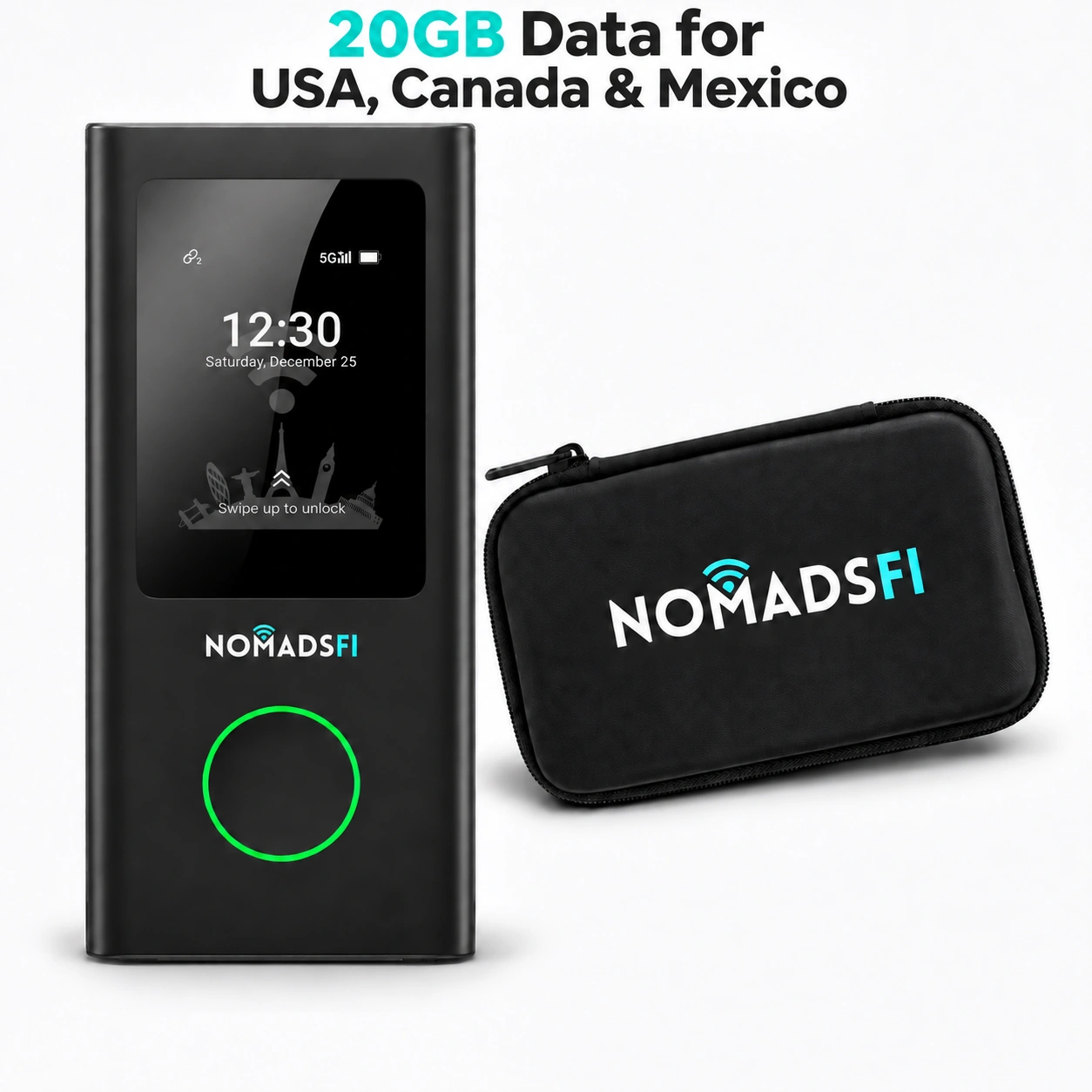
NomadsFi PocketFi 5G is designed to provide a portable connection in supported locations, but a little preparation can make the experience much smoother.
Before leaving
Charge the hotspot
Fully charge the device with a certified USB-C charger and cable. Pack the charger, cable, and a suitable vehicle or wall adapter.
Activate the correct plan
Confirm that the plan matches the destination and expected use. Domestic, international, and regional plans may have different coverage and conditions.
Check the IMEI
The plan must be linked to the correct 15-digit IMEI. A single incorrect digit can prevent activation on the intended hotspot.
Restart after activation
After a plan is added, restart the hotspot and allow approximately 1-3 minutes for network registration.
At your destination
Place the hotspot for signal, not convenience
Try an open location or a position near a window. Avoid basements, metal cabinets, enclosed storage compartments, and areas surrounded by thick walls.
Keep it ventilated
Warmth during charging or heavy data use can be normal. Do not cover the hotspot or leave it in prolonged direct sunlight. Stop using it if it becomes unusually hot.
Connect only the devices you need
Every connected device can use data and network capacity. Disconnect unused phones, tablets, TVs, cameras, consoles, or computers.
Protect your data allowance
Video streaming, operating-system updates, cloud backups, app downloads, and photo synchronization can consume data quickly.
- Disable automatic app and system updates.
- Pause cloud photo and video backups.
- Use standard-definition video when practical.
- Check estimated remaining data on the hotspot screen.
- Use Data Usage Protection when available.
If the connection becomes slow or unstable
- Move the hotspot to a more open location.
- Reduce the number of connected devices.
- Check the signal indicator and remaining data.
- Use Network Optimization if available.
- Restart the hotspot and wait 1-3 minutes.
- Consider local congestion, especially during busy hours or large events.
Build a backup plan
Cellular coverage is affected by terrain, towers, weather, buildings, congestion, and local network availability. No portable hotspot can guarantee service in every location.
Before remote travel, download important maps and files, tell someone your route, and keep another communication method available. Do not rely on a mobile hotspot for emergency calls.
The best mobile connection setup is not the one with the biggest promise. It is the one that is activated, charged, placed well, and supported by a realistic backup plan.