
.png?w=1000&h=1000)
![[Copy2]copy PocketFi 5G.](https://img-va.myshopline.com/image/store/1738987129708/ZHUTU1.jpg?w=1563&h=1563)
NomadsFi Help Center
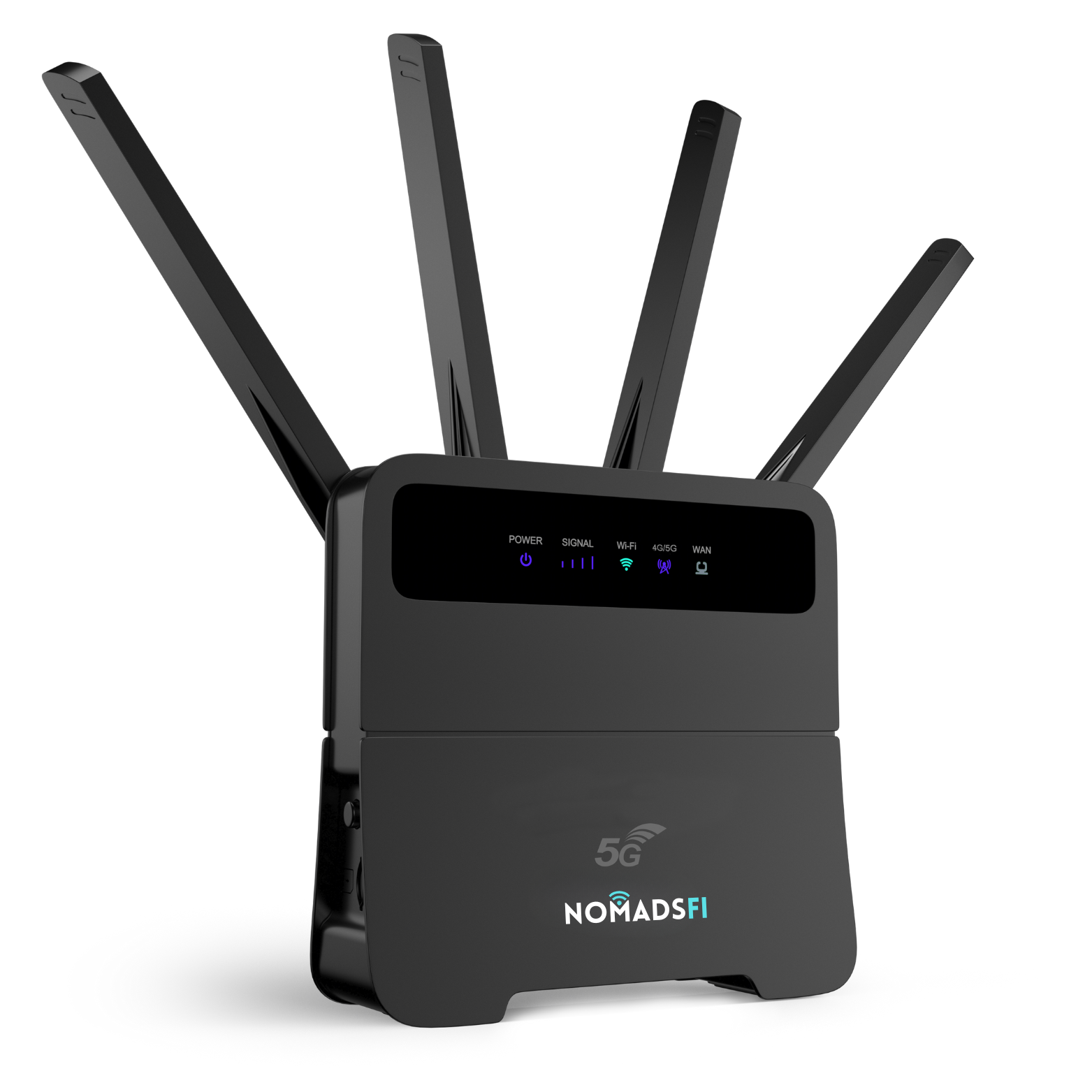
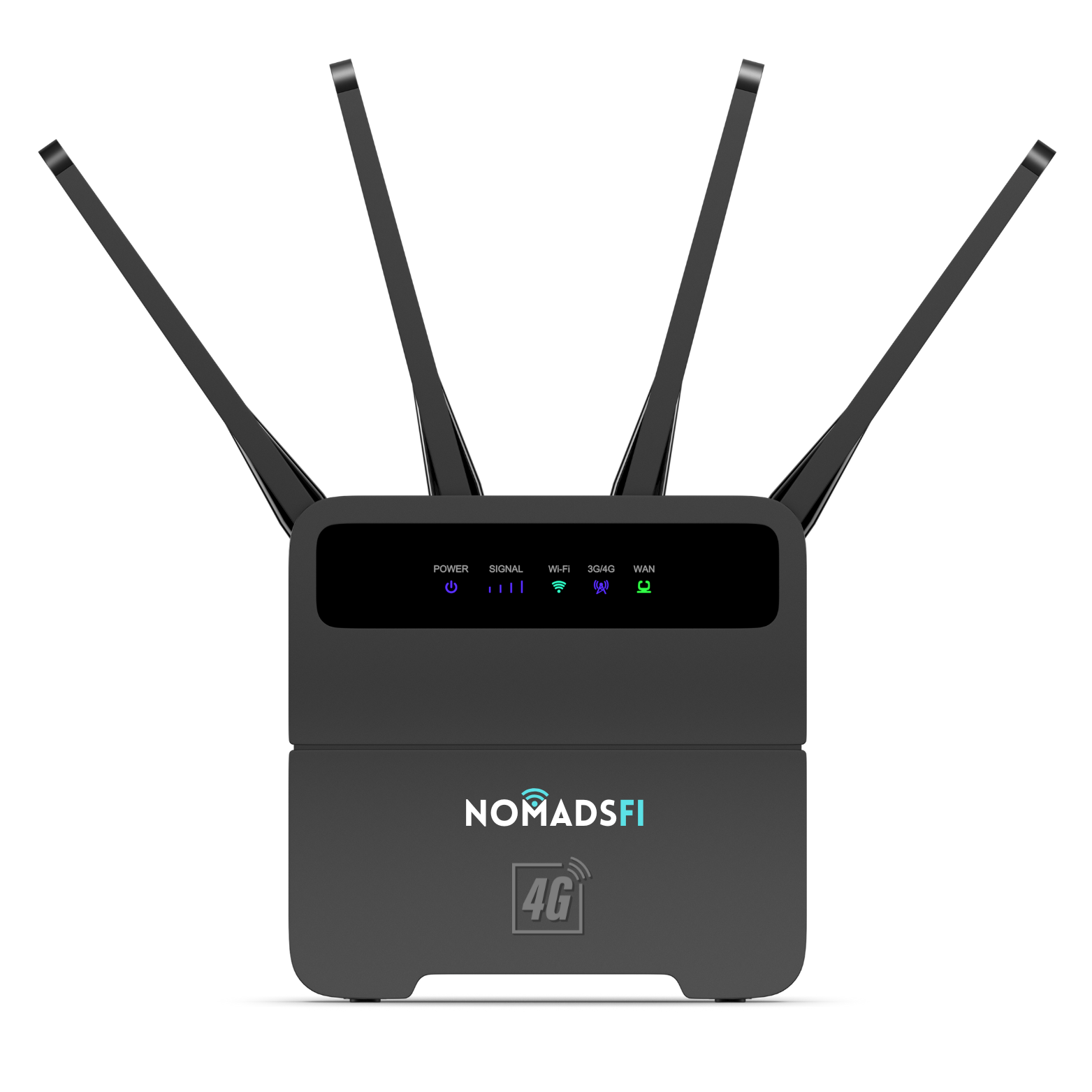
Welcome to the NomadsFi Help Center. Find setup instructions, plan activation guidance, connection tips, troubleshooting steps, and device safety information for your NomadsFi PocketFi 5G portable WiFi.
Need personal support? Email service@nomadsfi.com with your order number, 15-digit IMEI, current location, plan details, and a photo of the hotspot screen.
Help Topics
- Set up NomadsFi Device
- Connect a phone, tablet, or computer
- Activate a data plan with your IMEI
- Choose the right plan
- Check and save data
- Connected but no internet
- Improve a slow connection
- Power, charging, and temperature
- Network Optimization, USB, and SIM slot
- Safety, travel, and support
1. Set Up Your NomadsFi Device
- Fully charge the hotspot with a certified USB-C power adapter and cable.
- Press and hold the power button for about three seconds.
- Scan the QR code on the device label or open the NomadsFi plan page.
- Enter the hotspot's 15-digit IMEI exactly as printed.
- Select and purchase the correct data plan.
- Restart the hotspot after activation.
- Wait approximately 1-3 minutes for network registration.
- Select the Wi-Fi name displayed on the PocketFi screen and enter its password.
For better signal, keep the hotspot in an open area or near a window.
2. Connect a Phone, Tablet, or Computer
- Turn on PocketFi.
- Find the Wi-Fi name and password on its home screen.
- Open Wi-Fi settings on your phone, tablet, or computer.
- Select the matching network and enter the password exactly as displayed.
Passwords are case-sensitive. Check similar characters such as 0/O and 1/I/l. If the network does not appear, move closer and restart the hotspot.
3. Activate a NomadsFi Data Plan With Your IMEI
The IMEI is the 15-digit number that identifies your hotspot. Your plan must be linked to the correct IMEI before cellular data can work.
- Find the IMEI on the device label or device information screen.
- Scan the QR code or open the NomadsFi plan page.
- Register or sign in and enter all 15 digits carefully.
- Choose a supported plan and complete checkout.
- Restart the hotspot and wait approximately 1-3 minutes.
If the wrong IMEI was entered, contact support with your order number, correct IMEI, and purchase details.
4. Choose the Right NomadsFi Plan
Choose a plan based on location, trip length, number of connected devices, and expected data use.
- U.S. plans are intended for supported domestic use.
- International plans are intended for listed destinations and partner-network availability.
- Great China and other regional plans apply only to the regions shown in the current plan description.
- Smaller packages may suit navigation, messaging, backup use, and light work.
- Larger packages may suit shared devices, video calls, streaming, or extended RV use.
Review the current plan page for coverage, validity, renewal, high-speed data, speed management, and complete terms before purchase.
5. Check Data Usage and Reduce Unwanted Consumption
The PocketFi home screen shows estimated remaining data. Usage information may take a short time to refresh.
- Turn off automatic app and operating-system updates.
- Pause cloud photo and video backups.
- Use standard-definition video when possible.
- Disconnect devices that are not in use.
- Check connected devices from the Connections menu.
- Use Data Usage Protection when available.
6. Connected to PocketFi Wi-Fi but No Internet
- Confirm that an active plan is linked to the correct IMEI.
- Check that the package has not expired or run out of data.
- Restart the hotspot and wait 1-3 minutes.
- Move it near a window or to an open location.
- Check the signal indicator.
- Use Network Optimization if available.
- Disconnect unused devices.
Coverage can be limited in basements, elevators, metal buildings, remote terrain, and locations without supported carrier service.
7. Improve a Slow or Unstable Connection
- Move the hotspot to an open location or near a window.
- Avoid basements, metal enclosures, and thick walls.
- Reduce the number of connected devices.
- Pause large downloads, backups, updates, or video streams.
- Use Network Optimization if available.
- Restart and wait 1-3 minutes.
- Test later if the local network is congested.
The displayed 5G, 4G, or LTE network type depends on local service and the active plan.
8. PocketFi Will Not Turn On, Charge, or Feels Warm
If the hotspot will not turn on, charge it for at least 30 minutes with a certified USB-C charger and cable, then hold the power button for about three seconds. Try another compatible cable or adapter if necessary.
- Power on: hold for about 3 seconds.
- Power off: hold for about 6 seconds.
- Restart: hold for about 14 seconds.
Some warmth during charging or heavy use can be normal. Keep the device uncovered and ventilated. Stop using it and contact support if it becomes unusually hot, swells, leaks, smells unusual, or appears damaged.
9. Network Optimization, USB Network, and the SIM Slot
Use Network Optimization when the connection feels slow or unstable. The More menu may include USB Network, Update, About, Display, Language, and Scan Binding. Menu names can vary by firmware version.
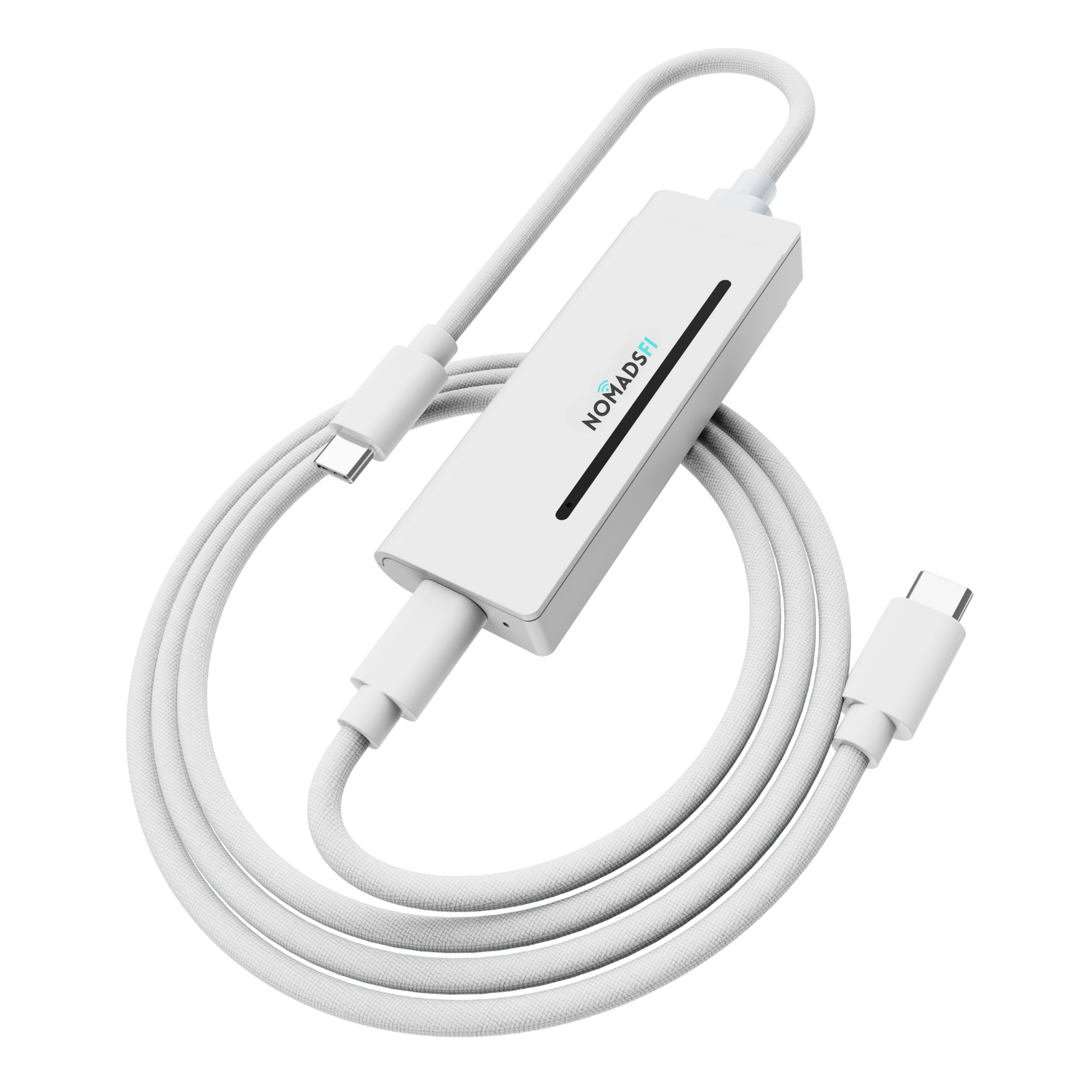
The USB-C port supports charging and supported USB network connections. The physical SIM slot is only for compatible supported use cases. Standard NomadsFi CloudSIM plans do not require routine SIM insertion or swapping.
10. Safety, Travel, and Contacting Support
- Follow local laws, airline instructions, venue rules, and carrier policies.
- Turn off the hotspot where cellular or radio devices are prohibited.
- Keep the device dry and clean it with a soft, dry cloth while powered off.
- Do not crush, puncture, disassemble, modify, or expose it to fire or extreme heat.
- Do not rely on the hotspot for emergency calls.
For faster support, email service@nomadsfi.com and include your order number, 15-digit IMEI, current location or destination, plan type and purchase date, a photo of the device screen, and troubleshooting steps already attempted.
Coverage, speed, menus, firmware, third-party service access, and plan availability may vary by location, network conditions, device version, and selected plan. Refer to the latest NomadsFi product and plan pages for current information.